Your first scene-based game
Build Cube Runner: an orange cube on a green floor that you drive with W, A, S and D and turn with the mouse. You will create the scene in the editor, add a player component in Zig, and make the camera follow the cube.
Before you begin
Install Zig 0.17.0 and Git. Eggy recommends zvm to select the
required Zig version. You will also need a code editor to edit src/main.zig.
The project setup guide covers setup separately.
1. Open the editor
Get Eggy and start its editor:
git clone https://github.com/eggyengine/eggy
cd eggy
zig build run
The first build takes a while; later builds are quicker. The editor should open when it finishes. After building, you can use the doctor command to check the toolchain and dependencies if you run into problems.
2. Make a project
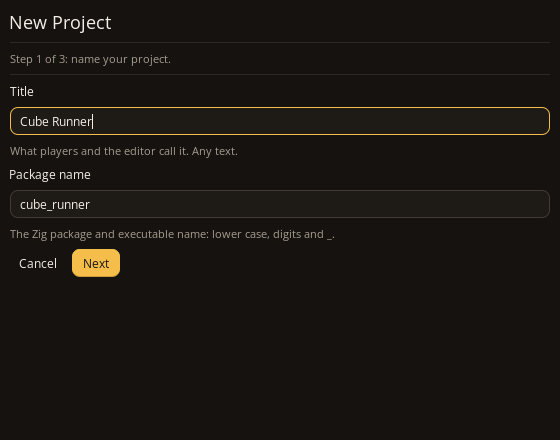
Choose File > New Project. Use Cube Runner for the title and cube_runner for the
package name. Players see the title; Zig uses the package name, which accepts lower
case, digits and _. Pick a folder for the project and create it.
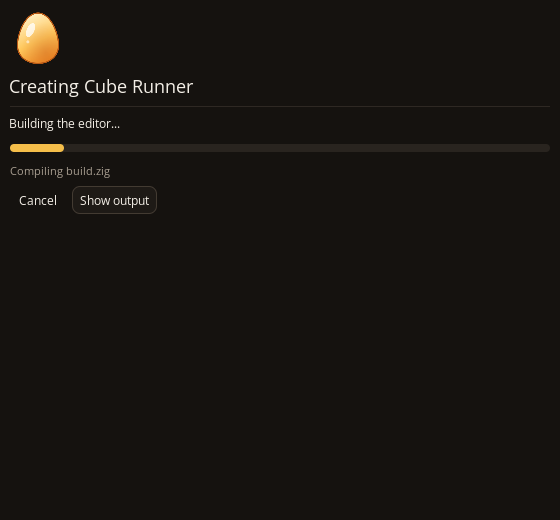
Eggy writes the project and builds its editor. This also takes a while the first time.
When it is done, the project's own editor opens:
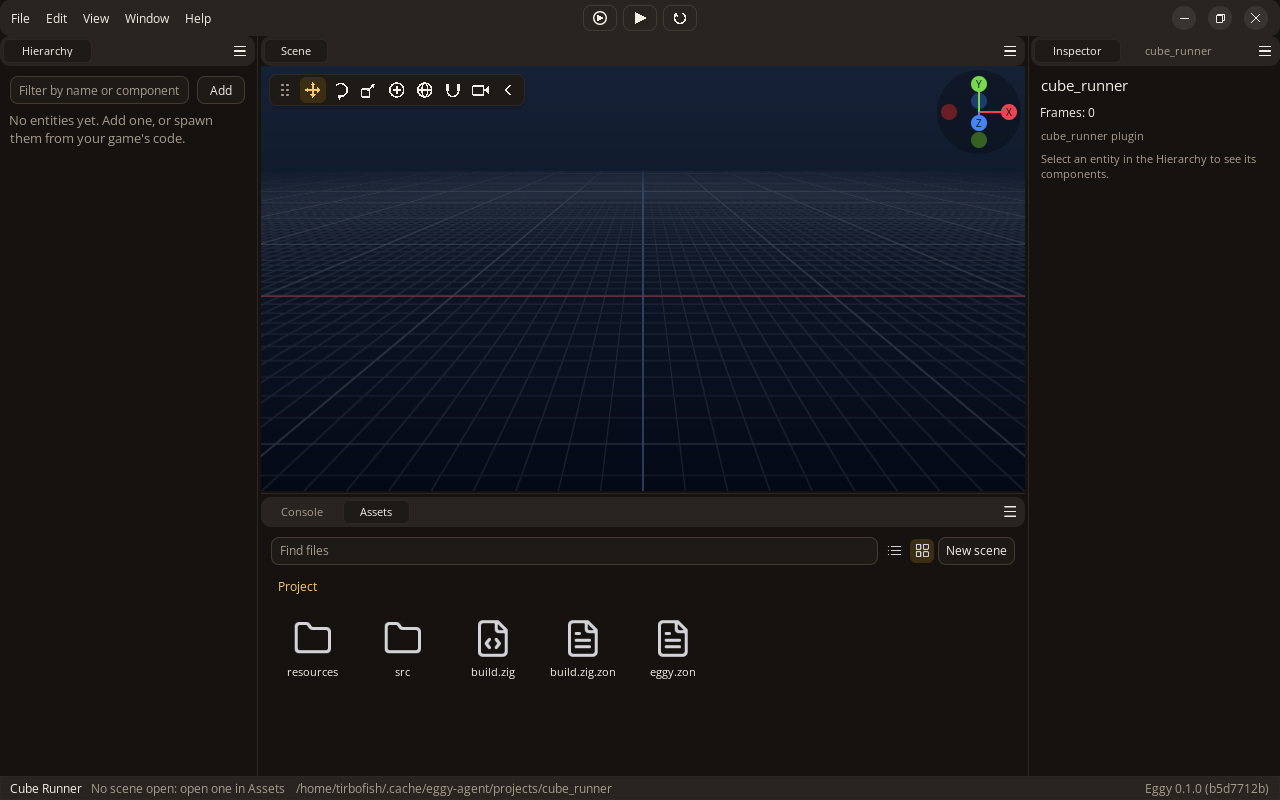
- Hierarchy, on the left, lists the entities in the scene.
- Scene, in the middle, shows them. Hold the right mouse button and move the mouse to look around, and scroll to zoom.
- Inspector, on the right, shows the selected entity's components. Beside it is a panel from your project's plugin.
- Assets, at the bottom, shows the project's files. Console beside it shows what the game and its build print.
3. Make a scene
A scene is a file holding entities. Choose New > Scene in Assets: the editor makes
untitled.scene.zon and opens it. Save it with Ctrl+S whenever you change it. The
status bar marks it with * while it has unsaved changes.
4. Add the player
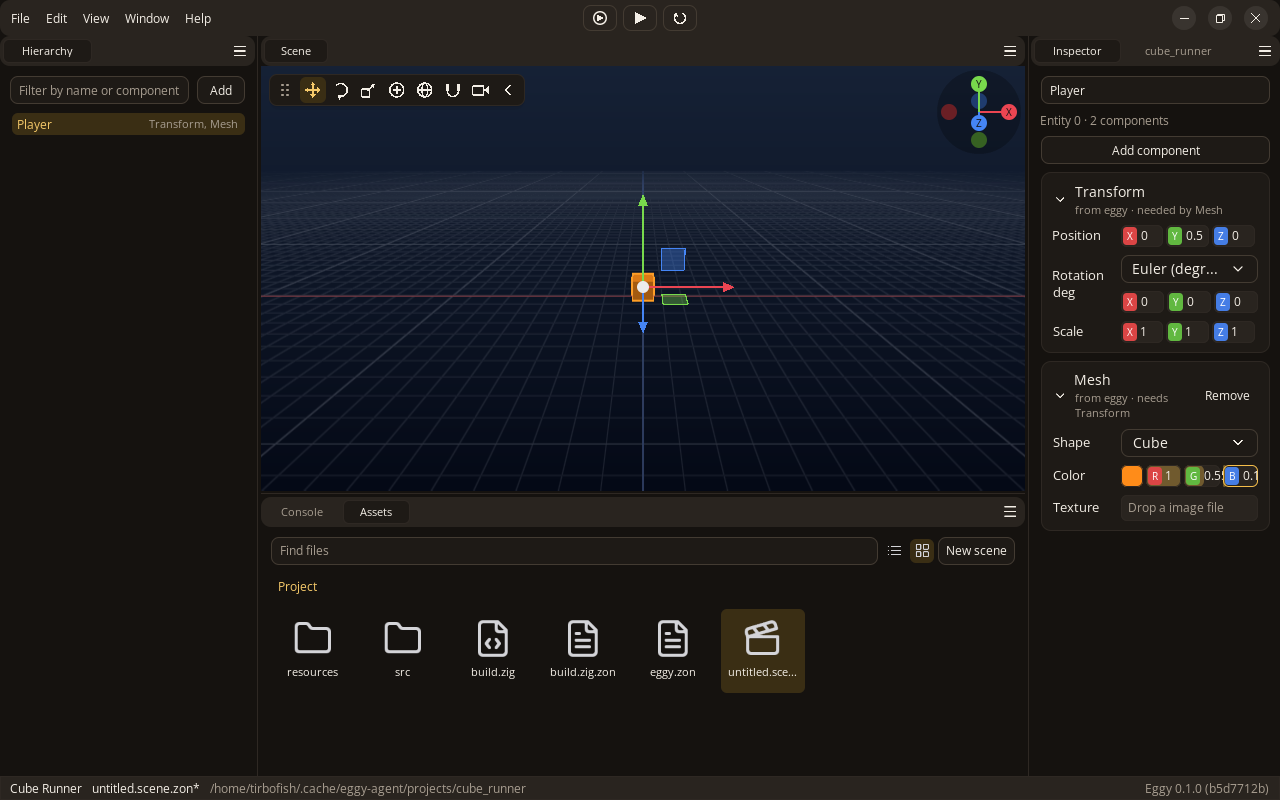
An entity is a thing in the scene. On its own it is only a name. Components give it everything else, such as where it is and what it looks like.
Press Add in the Hierarchy to make an entity, and rename it Player in the field at the top of the Inspector. Then press Add component:
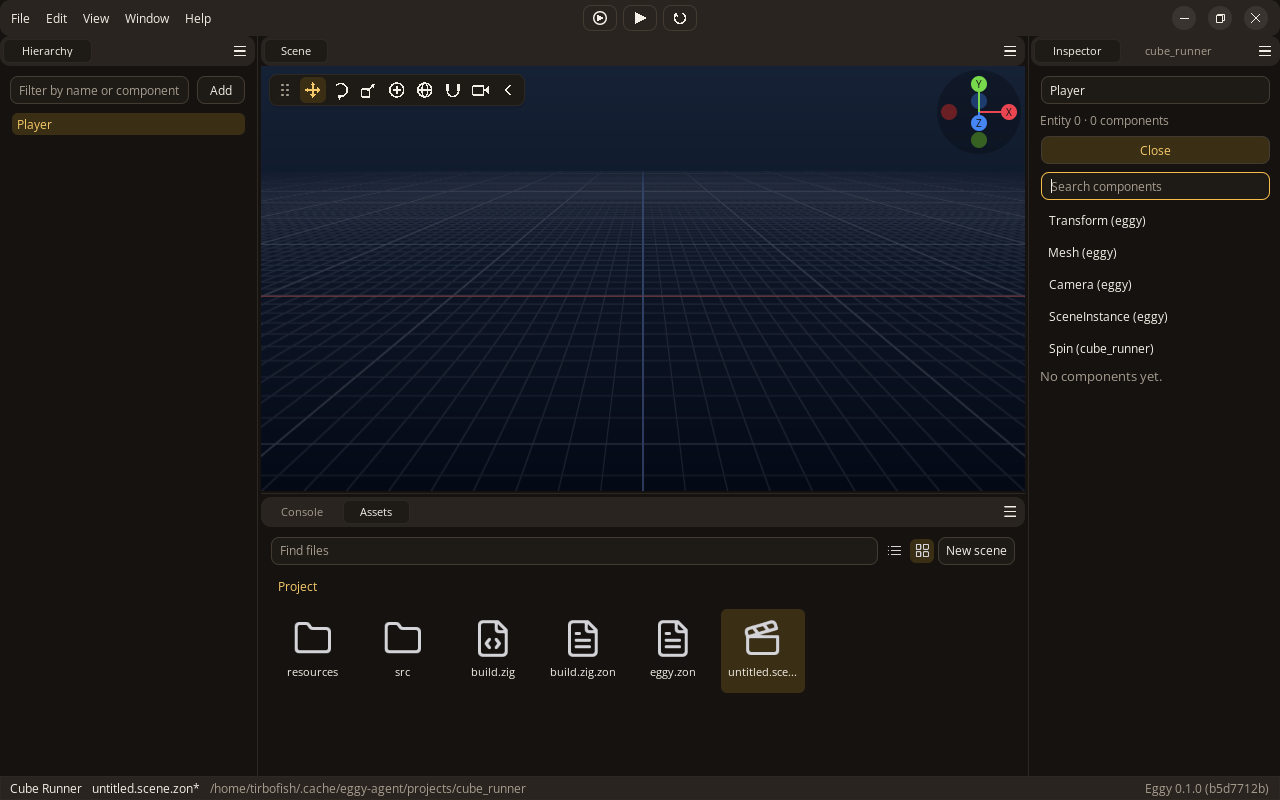
Add these two:
- Transform sets where the entity is, how it is turned and how big it is. Set its position's Y to
0.5, so the cube sits on the floor. - Mesh sets what it looks like. Pick the Cube shape and an orange colour (R
1, G0.55, B0.1).
5. Add the floor and the camera
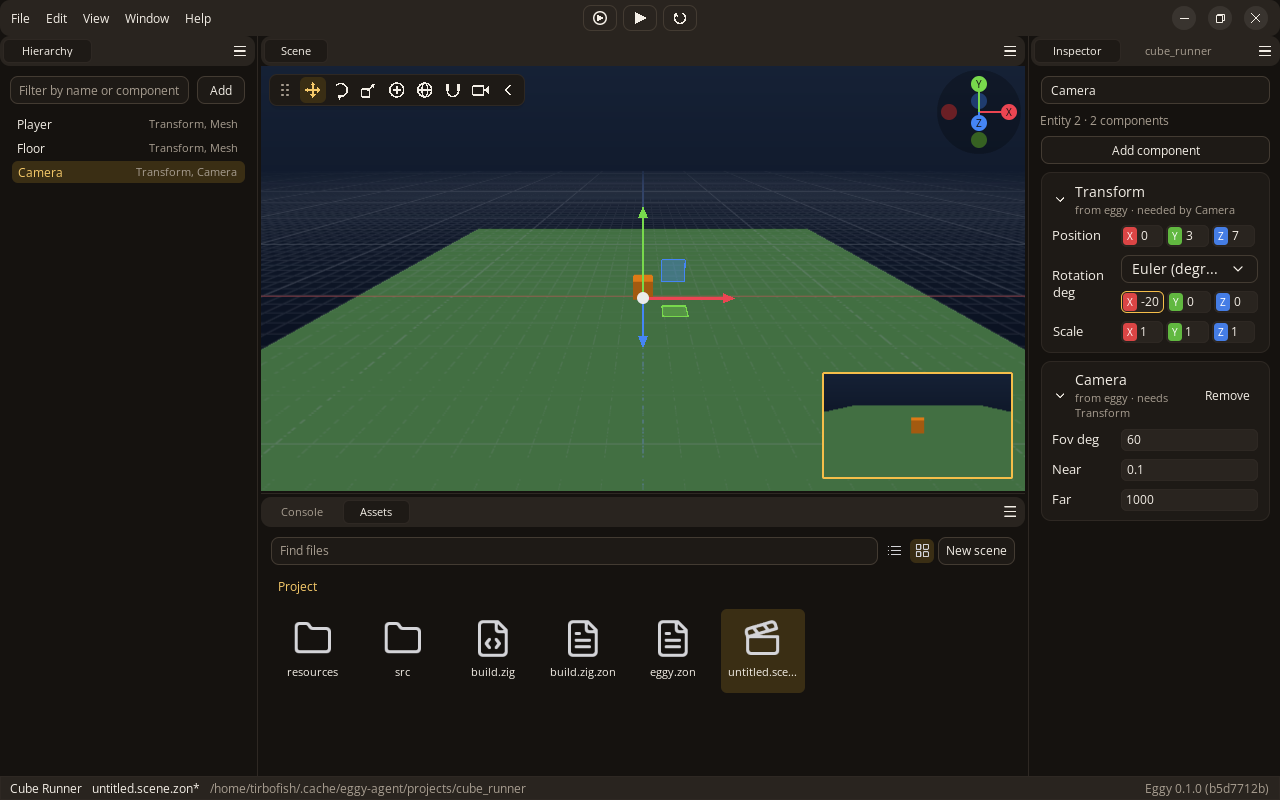
Add two more entities the same way:
- Floor, with a Transform scaled to
30,1,30and a Mesh with the Plane shape, coloured green (0.3,0.5,0.3). - Camera, with a Transform at
0,3,7turned-20degrees about X, so it looks down at the cube, and a Camera component.
While the camera is selected, the Scene shows what it sees in the corner:
Save the scene. Press Play at the top of the window. You should see the orange cube and green floor through the camera. Press Play again, or press Escape once, to stop. The same shortcut stops Simulate. Change Stop play key in Edit > Preferences to use another key. Play and Simulate start with no entity selected; selecting one while they run keeps it selected. The cube does not move yet.
6. Make the player move
Your game is the Game type in your project's src/main.zig. update is one of the
optional game and plugin hooks. Open the file
in your code editor and replace it with this:
//! cube_runner: the game. A cube you drive with WASD, turned by the mouse, with the camera
//! following behind.
const std = @import("std");
const eggy = @import("eggy");

/// Something the player drives: how fast it moves and turns.
pub const Player = struct {
    speed_m_per_s: f32 = 6,
    /// Degrees turned for each point the mouse moves, while the right button is held.
    turn_deg_per_point: f32 = 0.3,
};

pub const Game = struct {
    /// The components the editor's Inspector can add to entities.
    pub const components = .{Player};

    /// Runs once a frame while the game plays.
    pub fn update(self: *Game, app: *eggy.App) !void {
        _ = self;
        var players = app.world.query(.{ *eggy.Transform, *const Player });
        while (players.next()) |view| {
            const transform = view.get(*eggy.Transform);
            const player = view.get(*const Player);

            // Hold the right mouse button and move the mouse to turn.
            if (app.input.mouseHeld(.right)) {
                transform.rotation_deg[1] -= app.input.mouse_delta[0] * player.turn_deg_per_point;
            }

            // W and S go ahead and back, A and D to the sides, the way the cube faces.
            const across, const ahead = app.input.direction(.{});
            const forward = transform.forward();
            const right = transform.right();
            const step = player.speed_m_per_s * app.time.delta_s;
            transform.translate(.{
                (forward[0] * ahead + right[0] * across) * step,
                0,
                (forward[2] * ahead + right[2] * across) * step,
            });

            // The camera follows: six metres behind, three up, looking down a little.
            const camera = eggy.findNamed(&app.world, "Camera") orelse continue;
            const eye = app.world.get(camera, eggy.Transform) orelse continue;
            eye.position = .{
                transform.position[0] - forward[0] * 6,
                transform.position[1] + 3,
                transform.position[2] - forward[2] * 6,
            };
            eye.rotation_deg = .{ -20, transform.rotation_deg[1], 0 };
            app.world.markChanged(camera, eggy.Transform);
        }
    }
};
Player is your own component. Any struct can be one; listing it in components
lets the editor add it and edit its fields. Each frame during Play, update finds
entities with both Transform and Player and moves them.
The movement comes from app.input.direction(.{}), which reads A/D across and S/W
ahead as -1, 0, or 1. You can choose other keys or read one axis with axis.
Multiplying the speed by app.time.delta_s keeps it in metres per second as the
frame rate changes. The mouse movement turns the cube while the right button is
held. eggy.findNamed finds Camera so its transform can follow the player.
Save the file and go back to the editor. It rebuilds your game in the Build progress window, then swaps it in without closing the editor. If the build fails, the Console says why.
7. Add the player component and try the game
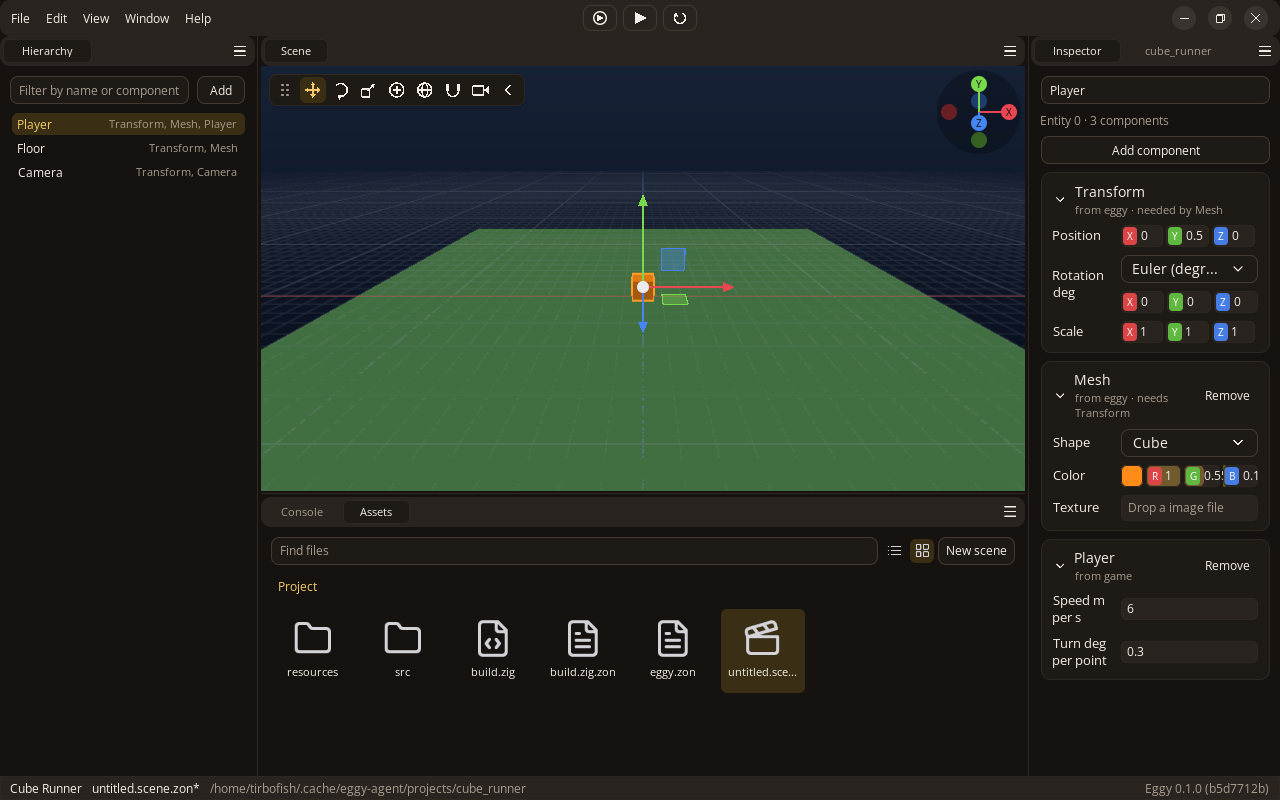
Select Player in the Hierarchy, press Add component, and add Player. Its fields come from the struct, with their defaults. You can change them here:
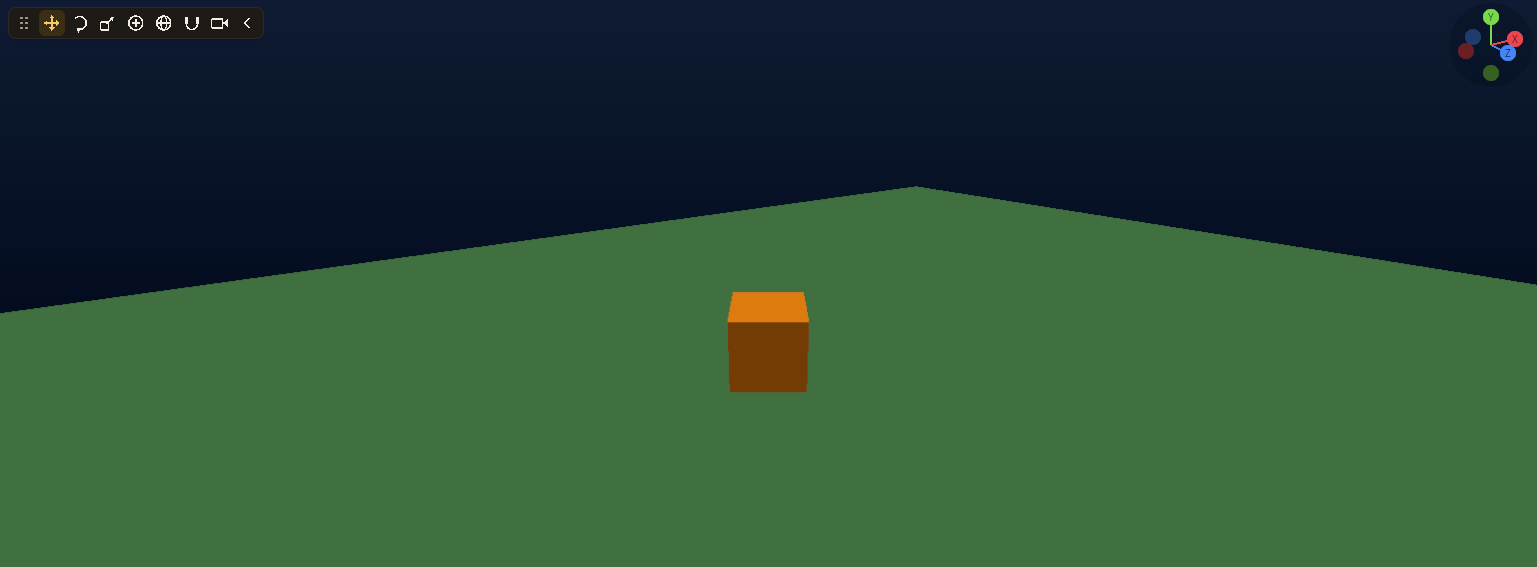
Save the scene, and press Play. Hold W to drive forward and use A, S and D for the other directions. Hold the right mouse button over the Scene while moving the mouse to turn. The camera should stay behind the cube:
Stop Play and check that the cube returns to its saved position. Playing does not change the scene you are editing.
Next
Run zig build run-runtime in your project to play without the editor. Then
map the player's controls to replace physical-key logic
with named controls.
- Create plugins to share code between games.
- Extend the editor with your own tools and panels.
- Your first code-only game creates the world without scene files.
- Handle errors in the runtime and editor.